Showing posts with label asynchronous learning. Show all posts

Wednesday, October 23, 2013

Yes, videos are useful tools for distance learning. But it is still a passive learning experience, right? Not necessarily...

Hearing but not listening

So you developed a great online or blended learning course; it looks as if your students are watching your videos at home, like they are supposed to. But they are still not performing well in their assessments... it is almost as if they are "hearing" but not "listening," "watching" but not "focusing" on the video presentations.

Our attention span for online videos

student talking on phone while on laptopThe truth is that in this fast-paced multitasking society, it is hard to get someone's complete attention, especially when asked to watch a video. According to video marketing research performed by Visible Measures, you lose 20% of viewers in 10 seconds or fewer, 33% by 30 seconds, 45% in 1 minute or less, and almost 60% by 2 minutes. Now these are marketing statistics and are not specific to education, but they do reflect our general attention span for watching online video.

What does that mean for us online and blended/hybrid teachers? It means that our students are probably folding laundry, cooking dinner, talking on the phone, or surfing the internet while "watching" our videos.

There are a lot of techniques we can use to increase the amount of attention students put towards watching our videos and this article will focus on just one: embedded interactives.

Embedded Interactives: Turning a passive video watching experience into active learning and engagement

For many of us, if we know we will have to perform a task after watching a segment of a video, we are more likely to focus because our attention will determine our success in the task. For students, if you award points for successful completion of the task, they have added motivation to pay attention to the video content. Plus, if you make the task(s) engaging, then it's plausible that some may complete the assignment out of sheer interest. Imagine that!

The Tasks

What are these tasks? They can be multiple choice or other quiz-type questions, participation in a discussion, a hotspot activity where students are asked to click on the correct part of a graph, document, photo, schematic drawing, etc. to show understanding, and there are many other possibilities if you take some time to think outside of the box.

But how do you actually create embedded interactives for your video?

A few options for creating interactives for your videos

You have a few options. Here are just a couple, which I recommend to my instructors.
Ted Ed TedEd

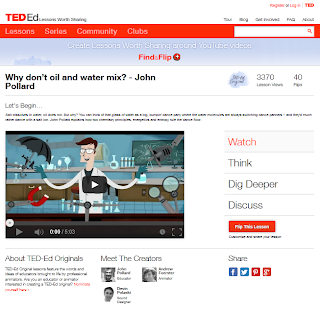
Use TedEd "Find + Flip" to modify any YouTube video or any video of your own. Through TedEd's simple interface, you can add up to 15 multiple choice or open-answer questions, a "digging deeper" section where students can learn more, guided and/or open discussions, and concluding thoughts. These activities are presented in order (watch, think, dig deeper, finally...) This online application is very easy to use and free to all.

Camtasia Studio

Use Camtasia Studio to record your video, edit it (by adding in any number of special features such as title and subtitle pages, music, captions, high-quality audio editing, arrows and other callouts) and add in quiz questions. Your options are multiple choice, fill in the blank, short answer, and true/false. Camtasia Studio costs less than $200 if you purchase an education license. This software is relatively easy to learn but does require relative comfort with software applications. Experience with video editing software is a plus.


Blackboard (combine the powers of adaptive release with embedded video and Blackboard tests)

Blackboard adaptive releaseAt Harper College, our Learning Management System (LMS) is Blackboard. By using the adaptive release feature, instructors can embed videos and then have subsequent quizzes and activities populate in the course shell after the video is watched. Blackboard quizzes can be as simple as a series of multiple choice questions, but can include more sophisticated assessment features such as hotspot activities (which is where the student is asked to identify something in an image, and by clicking on the correct zone of the image s/he is able to indicate understanding. For example, you can show an image of a skeleton and ask your students to "click on the femur bone." The students would show understanding by clicking on the correct bone in the skeleton.)

Articulate presentationArticulate

Some schools have Articulate, which is a robust add-on to PowerPoint that allows the user to create interactive learning modules. Here is an example training module created by the Harper College Center for Innovative Instruction in conjunction with the Harper Early Alert Team (HEAT). You'll notice it looks like an interactive PowerPoint contained in a useful user interface. The presentation was in fact created with PowerPoint, and the Articulate add-on is what gave it the user interface and interactive capabilities. If you select "Module 3: Practice" from the outline on the left, you can experience the power of Articulate at its best.

Thursday, August 22, 2013

Capture your lecture, screen and more with Camtasia Relay

What is Camtasia Relay?

Camtasia Relay is an easy-to-use lecture capture tool, which allows you to capture your computer screen, audio and web camera video with the click of a button. One of the unique features that puts Camtasia Relay above other screen capture tools is that it allows you or your administration to automate the workflow; through the creation of profiles, instructors are able to create videos and automatically publish them to specific areas in iTunesU, YouTube, and other file destinations.

Why Use Camtasia Relay? 

For your students: 

  • Video resources allow students to review course content as many times as they need and at any time in the day 
  • Videos make it easy for students who were absent to review important material 

For you: 

  • Videos can help you “flip” your course 
  • At least for us at Harper College, you can use Camtasia Relay to record from the comfort of your home. You simply need to be on campus to upload your videos. Other colleges may have set up their permissions differently, but the infrastructure is there to allow at-home recording. 

What equipment do you need to record with Camtasia Relay? 

  • To record your screen and sound, you simply need your computer and a sound device (microphone, headset or built-in microphone). 
  •  To record your screen, sound and video, you need you computer, a sound device and webcam. What do you need in order to publish to iTunesU from Camtasia Relay? 
  • For Harper instructors, you simply need to be on campus with access to the internet. Recording can take place at home; just bring your laptop to campus, connect to the campus wifi, and your videos will automatically upload. Again, other colleges may set up their permissions differently, but the infrastructure is there to support this and other workflows.   

Best Practices for creating video resources: Shorter is better. 

Try to stay away from videos that are longer than 10 minutes, and preferably, try to keep your videos between 2 – 5 minutes long. Why, you ask?

  • The download time for five 5-minute videos is exponentially faster than the download time for one 25-minute video 
  • Your students may not have the bandwidth to download large files, and the longer the video, the larger the file. Since we strive to democratize learning, we want to make sure that all our students have the ability to access our video resources. 
  • Students are able to focus better on five 5-minute videos than one 25-minute video. 
  • Shorter videos with titles to indicate the content of the video are especially helpful so that if students need to review them later, they can review the one or two sections they need. With a 25 minute (or longer) video, it is harder to find the right section to review since it is one long sequence with no chapter subdivisions.

Saturday, June 22, 2013

How to Ensure 'Regular and Substantive Contact'

Yesterday, I attended a discussion about 'regular and substantive contact' in online courses at the Online Teaching Conference held at Long Beach City College. In the state of California, 'regular and substantive contact' initiated by the instructor is required in order for the state to reimburse the college for that course. Correspondence courses, where information is broadcasted to the learner with minimal or no feedback from the instructor, are not funded. Ph.D. candidate Margie White led the discussion and shared some simple and practical ways to satisfy the requirement for 'regular and substantive contact' while providing a truly rich learner experience. Here are a few highlights:


1. Start in your comfort zone.


Consider how you provide 'substantive' contact to your face-to-face (f2f) students. Do you enjoy facilitating class discussions? Do you prefer one-on-one meetings where you provide feedback? Do you have journal assignments where you communicate with your students through extensive feedback on their journal comments? Do you have a hands-off approach to discussions because you want the students to direct the conversation, but then offer concluding remarks and a discussion summary highlighting the key takeaways? Whatever you already do, start with that and just apply it to the online experience. Once you are comfortable with those familiar methods, you can expand your modes of 'regular and substantive contact'.


2. Know your students, content and technology tools.


See what methods fit best with your students and content area, and can be accomplished using technology you have at your disposal.

3. Track student participation.

Have prewritten emails you can send to your students when you notice they are not participating in class, or are not engaged enough to be successful. This is especially important in the first weeks of the course when students are just figuring out how to use the technology, while learning how to effectively study for a new subject and exercise time management. Take advantage of early alert tracking technology and/or statistics tracking if your LMS offers these tools, since they will save you a lot of time and oversight.

4. Facilitate strategic discussions.

 Be actively involved in a way that shows you are present, and that encourages deeper thinking on the part of the students. Don't answer questions that your students could answer for one another, and don't ask right or wrong questions since there is nothing to say after the first person correctly answers the question. Be sure to offer incentives for participation (I.e. grades/points) and use rubrics so students know how they are being graded.

5. Offer public feedback.

Public feedback to students can take place in discussion summaries or weekly summaries; highlight the efforts and actions of individual students as you sum up the key takeaways. You can also respond to student discussion posts to offer direct feedback in a public setting.

6. Offer private feedback.

Private feedback can take place through grade feedback, virtual meetings, and through journal comments. Be sure to tell your students where they can find comments and feedback in their course.

7. Use synchronous tools.

Tools like Blackboard Collaborate, CCC Confer, and Google hangouts are great for office hours, study sessions, final reviews, moderated group work and interactive lessons.

8. Use asynchronous tools.

Create asynchronous presentations, videos, podcasts (with transcripts), and/or voice thread (with transcripts) so students can see you or hear your voice, and feel connected to you directly. For example, you can create a welcome video, weekly video summaries, and quick tutorials.